How to use Stale & SLA
Time in status as numbers you can sum and chart, alerts when items go quiet, SLA targets per status with an escalation ladder, and a short list of what needs attention on each board. Set-up takes about two minutes per board.
Install
- Open Stale & SLA in the monday.com marketplace and click Install.
- If you are not an account admin, click Request to add instead. An account admin must install the app and connect it once.
Prerequisite: a board with a status column. A date or timeline column (for schedule slippage) and a people column (for escalations) are optional.
Before you start
Who can set it up: an account admin connects the app once and approves it on monday.com's consent page. Changing a board's settings stays admin-only.
What the app writes: only the numbers columns it creates on the boards you set up: Days in current status and Days since last activity, and, when you turn them on, Days slipped, Times rescheduled and one Total days in <status> column per tracked status. It does not modify any other column. It posts updates and sends notifications only for the escalations, digests and automations you set up.
Who sees the numbers: everyone who can see the board sees the numbers columns like any other column. Members can open the app's views on the boards they can see. Guests can open the board settings, the widget and the status timeline in read-only mode, only on the boards they were invited to. Viewers cannot open the app's views.
First use (3 steps)
- Add the board view. On the board, click + Add view → Apps → Stale & SLA settings. If the app is not connected yet, a welcome page opens first. An account admin clicks Get started, reads what the app does with the account's data, ticks I agree and clicks Connect, then approves the app on monday.com's consent page. The consent tab then closes by itself (if your browser keeps it open, it says you can close it) and the board view continues on its own.
- Choose the status column the timing should follow, decide whether time is counted in calendar days or in business hours (time zone, work days, hours, holidays), and click Save & run now. Days in current status and Days since last activity appear on every item, with the history read from the board's activity log.
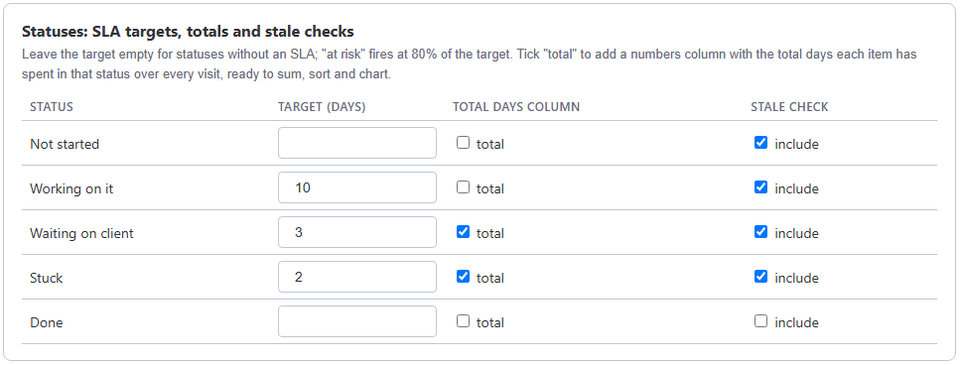
- Optional: set an SLA target per status, tick the statuses that get a Total days column, choose a date column to track slippage, and set the stale threshold and escalation steps (who gets notified after how many days). Then add automations from the board's Automate center using the Stale & SLA blocks listed below.
What the numbers mean
| Column | Meaning |
|---|---|
| Days in current status | Time since the item entered its current status. In business hours mode a value of 3 means three working days of the board's calendar. |
| Days since last activity | Time since anyone did anything on the item: a status change, a comment, a column edit, or the item's creation. The app's own updates never count. Items quiet for more than 120 days show "at least 120". |
| Total days in <status> (optional) | For each status you tick under Statuses in the settings: the total time an item has spent in that status over every visit, in the board's clock. Sum it across a group to see where the time goes. |
| Days slipped (optional) | When you choose a date or timeline column to track: today's planned date compared with the first planned date the item ever had, read from the board's history. +5 means the item was pushed out five days (working days in business hours mode); a negative number means it was pulled in. |
| Times rescheduled (optional) | How many times the planned date was changed after it was first set. |
The app refreshes the numbers at least once a day, and immediately when an admin clicks Save & run now.
What needs attention
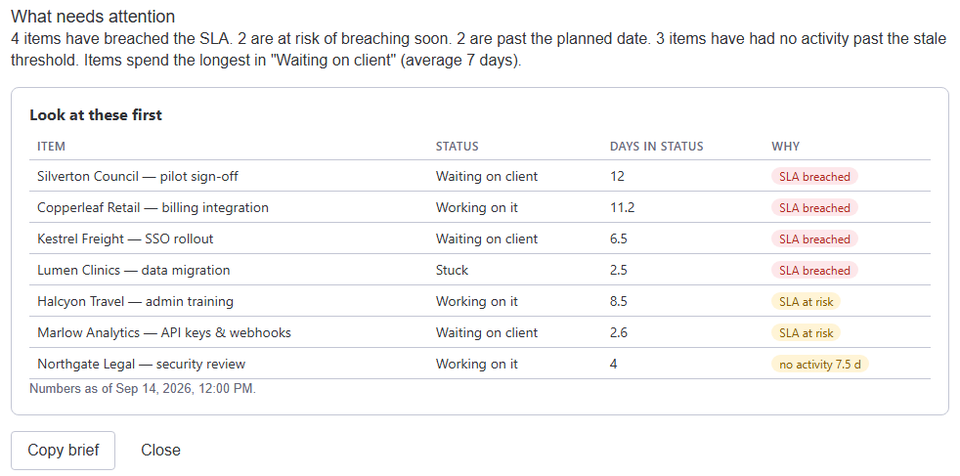
Open What needs attention from the board header to see the board's stale, at-risk and overdue items with a one-paragraph summary. Each item shows its status, its days in that status and why it is listed, worst first. The list comes from the app's last run on the board.
Automations (workflow blocks)
Open the board's Automate menu and search for the template you want, for example "no activity". Stale & SLA's ready-made templates connect these blocks to monday.com's own actions:
| Block | What it does | Typical use |
|---|---|---|
| When an item has had no activity for N days trigger | No activity for N days (0.5 to 3650) in the statuses you chose. Fires once per quiet stretch and re-arms when someone touches the item. | Notify the owner, move the item to a "Needs attention" group, change its status. |
| When an item is at risk of missing its SLA trigger | 80% of the target for the item's status is used up. | Warn the assignee before the deadline. |
| When an item breaches its SLA trigger | The target for the item's status has passed. | Notify a manager, raise priority, post an update. |
| When an item's planned date slips N days or more trigger | The tracked date is N or more whole days later than the first planned date the item had. Fires once per item; needs a tracked date column in the board's settings. | Warn the project manager, flag the item, ask for a new estimate. |
| When the weekly Stale & SLA digest is ready trigger | Once a week, on the weekday and hour chosen in the board's settings. | Email the digest to a manager or post it elsewhere; the trigger carries the text and every count. |
| Escalate an item to a people column action | Shown in the builder as "Escalate to people column with message". Notifies everyone in the chosen people column of the item and posts an update on the item with the message (500 characters at most). | After a stale, at-risk or breached trigger, when someone must act. |
| Get the stale, at-risk and overdue items on a board action | Shown in the builder as "Get up to 10 stale, at-risk and overdue items on this board". Read-only: returns 1 to 20 items from the app's last run and a one-paragraph summary. | Pass the list and summary to a later step, such as a notification. |
The weekly digest
In the board settings, switch on Send it to me under Weekly digest and pick the weekday and hour. Every week you get one monday.com notification with what is over its SLA, stale, overdue or slipped on the board (five items per section, worst first). Preview this week's digest shows the text as it would go out now; Save & send it to me now sends a test copy to you only. To send it anywhere else, add an automation with the "When the weekly Stale & SLA digest is ready" trigger.
Reading the widget and the item view
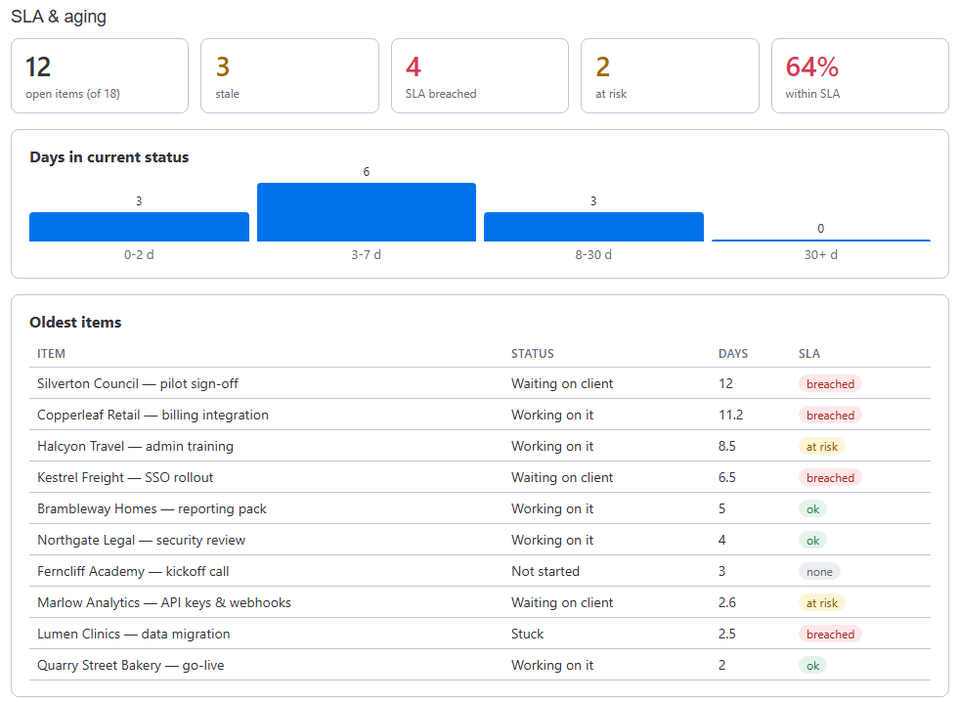
The SLA & aging dashboard widget shows how many items are ok, at risk or breached, which items are the oldest, and how long items spend in each status on average. It also shows the board's cycle time: median, average and longest time from an item's creation to a finishing status such as Done, over the last 90 days, per group. With a date column tracked it adds a Schedule block: overdue items, items that slipped past their first planned date, items rescheduled twice or more, the average slip, how many finished items met their first date, and the worst offenders.
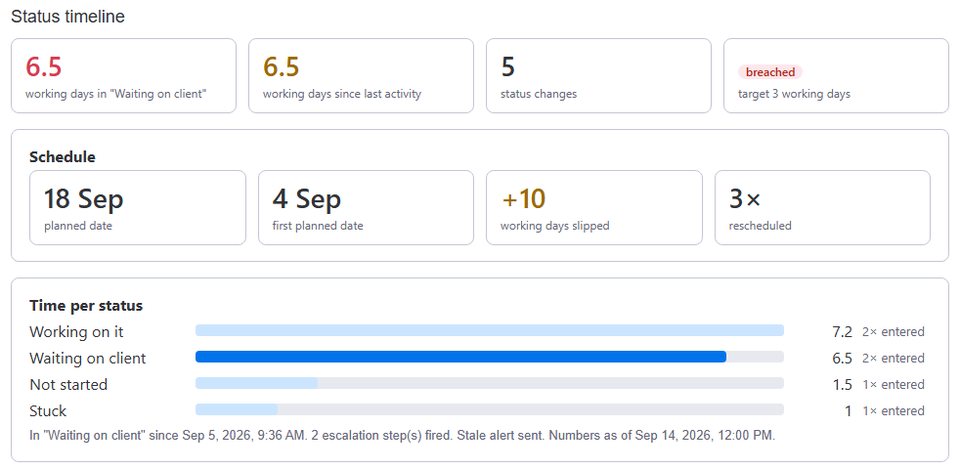
The Status timeline item view shows the same for one item, status by status, with its planned date, first planned date, slip and reschedule count.
Business hours
With business hours on, every number is in working days: an SLA of 2 days means two working days of the board's calendar (for example 9:00–17:00, Monday to Friday, minus the holidays you list). Business hours are part of the Pro and Business plans. Account defaults for new boards (Business plan) live in the app's Settings tab (Installed apps → Stale & SLA → Settings).
Frequently asked
The numbers did not appear. Open the settings view and check the board is enabled and the status column is chosen; then click Save & run now. An admin has to have connected the app first.
An alert fired twice. It cannot fire twice for the same quiet stretch; a second alert means the item was active in between, or it moved to another status and went quiet again.
Can I use the numbers in formulas and charts? Yes. They are ordinary numbers columns: sum them, average them, chart them, filter on them.
Where is my data? On monday.com's own app hosting platform (monday code), in its EU region. The app stores your board settings, per-item timing summaries (including item names, group names and status labels) and the admin's access token (in monday code Secure Storage). When the app is uninstalled and monday.com confirms that the app has lost access to the account, the app deletes all of it. If monday.com cannot confirm this at the time, or the deletion does not finish, we complete the deletion by hand within 30 days of the uninstall.
Support
Email support@truecrane.com, in English. Every plan, including Free, gets the same support. A person replies within 2 business days, wherever you are; support days are Sunday to Thursday, Israel time. If the app stopped working, wrote wrong values or notified the wrong people, or you suspect a security or privacy problem, put URGENT in the subject.